Login
Dhamma.gift doesn't need an account or an email address. "Login" here means cloud sync of your favorites, history, subscriptions, reading progress and settings across devices — three ways to do it:
- Google — a regular Google account sign-in.
- Apple — Sign in with Apple, with your Apple ID. Apple may let you hide your e-mail; we then only get a private relay address from Apple.
- Secret passphrase — fully anonymous: pick a phrase of at least 8 characters (no email, no password). Anyone who types the same phrase on another device gets access to the same synced data — treat it like a password.
If the device already has local data
Logging in (either way) on a device that already has its own history or favorites shows a choice:
- Merge — keep what's already on this device and add the cloud data on top of it.
- Overwrite — wipe this device's data and pull down the cloud copy instead.
After logging in
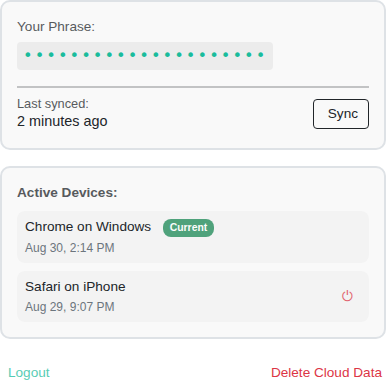
- Sync — force a sync right away instead of waiting for the automatic one.
- Active devices — a list of every device currently signed in with this same phrase/account, with its device model and browser (detected automatically, nothing you type in) and last-active time.
Three different actions are easy to mix up — they don't touch the same data:
| Action | Where you click it | What it wipes |
|---|---|---|
| Logout | On this device | Nothing — it just turns off sync on this device. Local and cloud data are both left alone. |
| Delete account & cloud data | On this device | Everything in the cloud (history, favorites, subscriptions, progress, settings, the account itself). Doesn't touch local data on this device. All sessions are deleted too, so every other signed-in device wipes its local data. With Google or Apple you sign in again to confirm. |
| Terminate session (the ⏻ icon next to another device in the list) | Remotely, from any device in the list | Disconnects THAT device from the cloud and wipes all of its local data (except language and theme) — the confirmation prompt warns you about this honestly. |
Clicking ⏻ on your OWN second device (say, your phone, thinking "I'll just close that extra session") wipes everything on that phone the next time it touches the network: history, favorites, reading progress, settings. Only use it on devices that are genuinely lost or shouldn't have access anymore.
Backup and Restore
On the site, the login page also has Backup and Restore. Backup saves this device's favorites, settings and recent history (the newest 84 entries) to a JSON file. Restore loads such a file back; records from the file replace matching data on this device. It all happens in the browser, and no account is needed. The apps don't show these buttons.
How the secret passphrase is stored
The phrase is normalized (lowercased, spaces → hyphens) and hashed on your device (SHA-256) before anything is sent to the cloud — the hash, not the phrase itself, is what identifies your data in the cloud.