MultiTool
MultiTool supports customization: reordering buttons, adding your own with your own icons, hiding the ones you don't need — and all of it syncs to the Cloud once you're signed in. Details in Make it your own below.
MultiTool is the set of links on the Dhamma.gift home screen — a Dhamma multi-tool gathering links to the most important Pali and Dhamma resources, study materials, and utilities: Read Pāḷi, External (other Pali editions), AI & Dicts, Materials, Tools.
Know a site or app that belongs here? Tell us via Contacts.
Make it your own
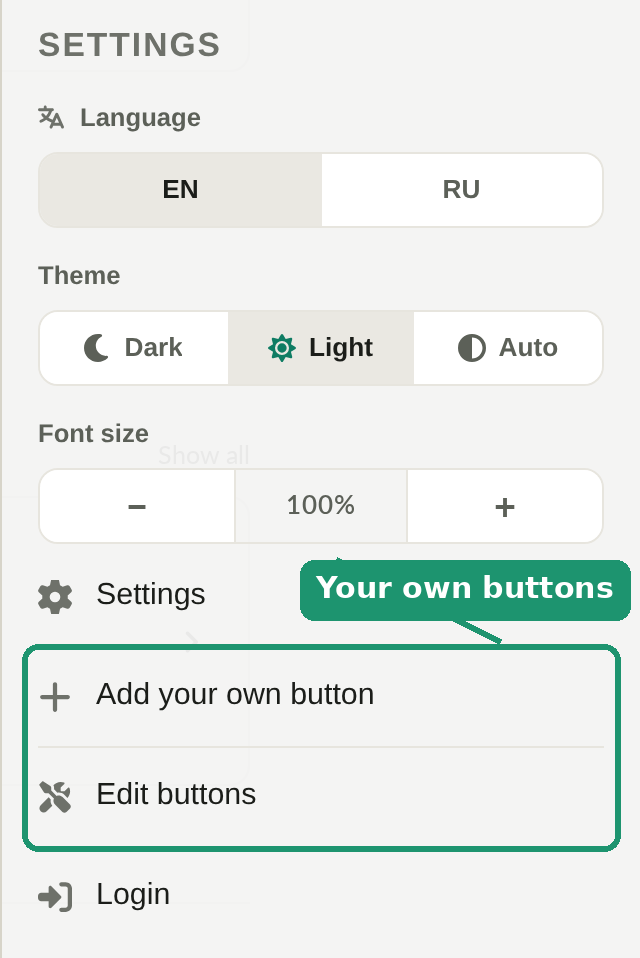
The set of tiles isn't fixed — open the burger menu (☰), all the way at the bottom, under "Settings":
-
Add your own button — your own link with fields for Label (up to 24 characters), Address (you can drop
{{q}}into it — it gets replaced with whatever's currently in the search box), Description (optional, shown as a tooltip), and an Icon — pick one from the built-in set or type your own emoji: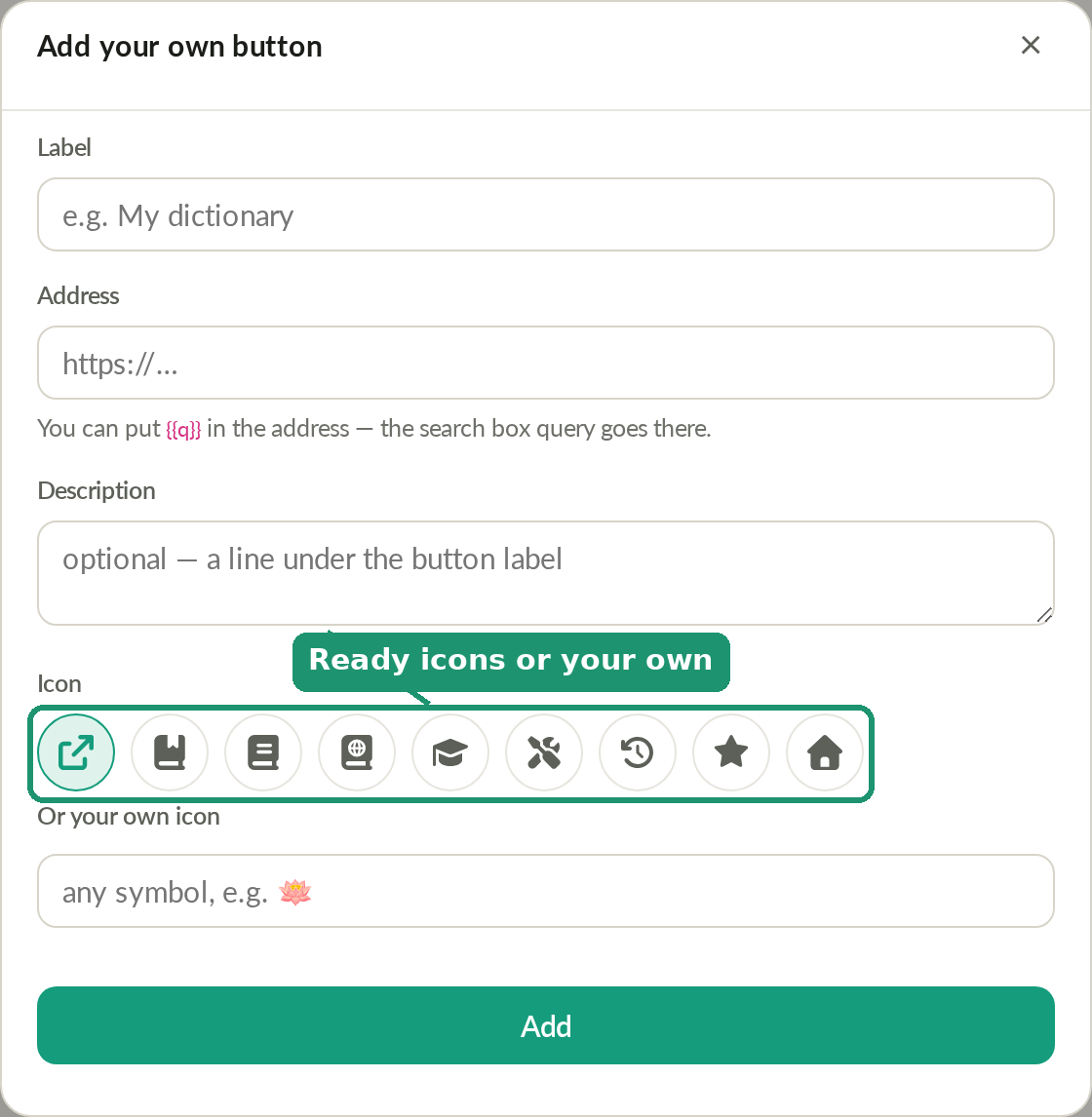
-
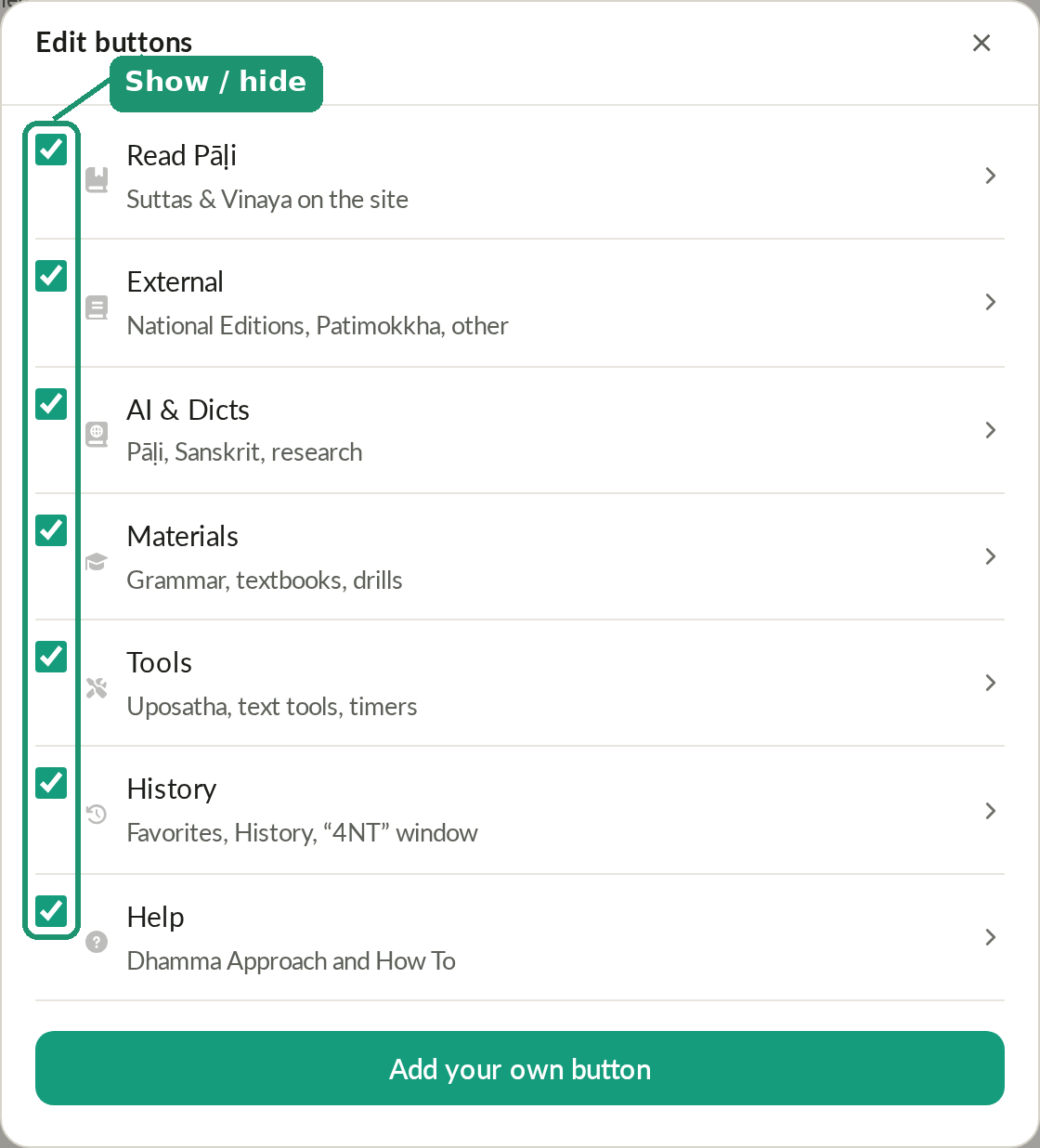
Edit buttons — a list of every tile (built-in and your own) with a visibility checkbox next to each: uncheck it and the tile disappears from the home screen, check it again and it comes back. Clicking a tile in this list opens it for editing — you can change the label, address, description and icon even on a built-in tile (after that it stops auto-updating along with the rest of the site; "Restore original" in the same menu undoes the edit and turns auto-updating back on):
-
Tile order — on the home screen itself, tiles can be dragged: with a mouse, just drag (a small initial movement starts the drag, so it doesn't interfere with a plain click); on a phone, press and hold for roughly a quarter-second, then drag (so it doesn't interfere with scrolling). The new order saves the moment you let go.
-
Restore tiles — this option only shows up in the "Settings" menu when there's something to restore (something hidden, or the order changed). It brings back the original set and order of tiles; if you've added tiles of your own, those get deleted for good in the process (the app warns you and asks for confirmation first — there's no way to bring them back afterward).
All of your own buttons and edits sync to the Cloud once you're signed in — see Login for how sign-in and cloud sync work. A tile's custom emoji icon and the tile order itself are NOT synced — those stay purely local to this particular browser.
Your own picks inside a category
Each tile like "External", "AI & Dicts" or "Materials" opens a list of links on that topic. Some of them already carry a gold star — the project's own editorial pick. A long-press (on phones) or right-click (on desktop) on any link in that list toggles a star for you personally, on top of the editorial one — say, to remove a star from something you don't care for, or mark your own favorite resource. These personal marks are also stored only in this browser, not in the Cloud.
Favorites and History
The History button on the home screen opens the same window as the compass icon — the "Favorites" tab, where bookmarks and search history live. See the Quick Window page for more.