Reader

Open any sutta directly by its id (dn22, mn139, sn56.11, an4.180) —
no search needed. Try it live below (this is the real reader, not a demo
clone — click around, switch modes, change the font):
Reading modes
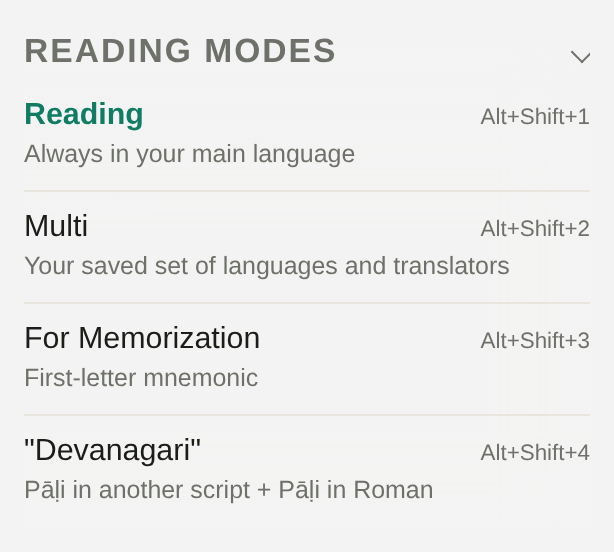
Four reading modes, listed under "Reading modes" in the burger menu (☰), each with its own Alt+Shift hotkey:
| Hotkey | Mode | What it shows |
|---|---|---|
| Alt+Shift+1 | Reading | Pāḷi + one translation, always in your main language |
| Alt+Shift+2 | Multi | Pāḷi + your saved set of languages and translators side by side |
| Alt+Shift+3 | For Memorization | First-letter mnemonic (the same trick as Memo, applied straight to the live sutta text) |
| Alt+Shift+4 | Devanagari | Pāḷi in another script + Pāḷi in Latin |
Alt+Shift+1…4 switch the mode and keep the language you're reading in. The language switches with Alt+1, the same on every page of the site; Alt+2 opens the table of contents and Alt+3 the dictionary.
A mode isn't tied to one fixed language — "Devanagari", for instance, shows Pali in whichever script you've selected (see below) alongside the Latin transliteration, not literally the Devanagari script only.
Context menu
The reader's real gem is the per-line context menu. Hover (or tap) the start or end of any line — Pali or translation — and a tiny ✦ appears; clicking it opens a menu with 7 actions:

- Line — copy this line (Pali + translation) with a link to it.
- Paragraph — copy every line from here to the end of the paragraph (for verse/gāthā texts with no shared paragraph, this just copies the current line).
- Link — copy just a link to the line, no text.
- Voice — start voice playback from this line — see Voice / TTS.
- Bookmark — add the line to favorites — see the "Favorites" tab in the Quick Window.
- Memorize (sometimes labeled "Meditate" — both open the same thing, the label is picked at random) — opens Memo pre-filled with the text from this line to the end of the sutta.
- Compare — opens this line in 4nt with every Pali edition side by side (MS, royal, Burmese, BJT).
The menu only opens from the invisible ✦. Clicking the line's text directly (not the ✦) selects it for the voice player and shows a ▶ Play button — a separate feature, covered in Voice / TTS.
Right-click / long-press on ✦ is the shortcut: it copies just the line link, no menu.
Pali script
Alt+L cycles through three common scripts: Latin (ISO) → Devanagari → Thai. The full list — around 160 scripts (Burmese, Khmer, Sinhala, and anything else Aksharamukha can convert to) — is in the dropdown on the Settings page.
Dictionary
Clicking any Pali word (with the dictionary turned on) looks it up straight in Dict.Dhamma.Gift — either in a popup over the text or in a separate tab, depending on the dictionary mode you've chosen. See Dictionary for the dictionary itself, its hotkeys and display modes.
The dictionary mode (which window it opens) and a couple of other reading options live in the Quick Settings panel (the sliders icon next to the search box — also works inside the reader):
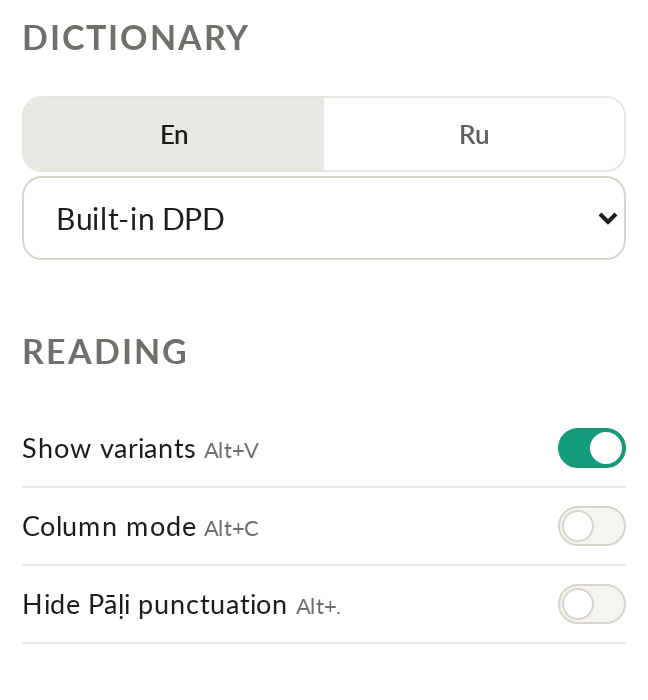
- Dictionary — the same list of modes described on the Dictionary page: built-in DPD, Dict.DG popup or new window (full or mini), DharmaMitra.org, sutta-search-only, or an external app (DictTango, Mdict, GoldenDict-NG) — separately for English and Russian DPD.
- Show variants (Alt+V) and Column mode (Alt+C) — the same buttons already in the toolbar above the text, duplicated here for convenience.
- Hide Pāḷi punctuation (Alt+.) — strips punctuation from the Pali text, handy for memorization.
Further down the same panel is a "Pāḷi diacritics" block — buttons for the special Pali characters (ā ī ū ṁ ñ ṅ ṭ ḍ ṇ ḷ); clicking one inserts it straight into the search box at the cursor, for when your keyboard doesn't have them.
Hotkeys
| Key | Action |
|---|---|
| Alt+Shift+1 … Alt+Shift+4 | Switch reading mode (see table above) |
| Alt+1 | Switch the language (English / Russian) |
| Alt+C | Toggle 1-column / 2-column layout |
| Alt+V | Show/hide Pali spelling variants |
| Alt+Q | Add/remove the current page from favorites |
| Alt+A | Toggle the dictionary on word click |
| Alt+N | Open the dictionary in a separate window |
| Alt+W | Table of contents of the text |
| Alt+2 | Open the TOC Navigator |
| Ctrl+← / Ctrl+→ | Previous / next sutta |
| Click a line | Select it for the voice player (see Voice / TTS) |
| Click ✦ at the start/end of a line | Open the context menu (see above) |
| Right-click / long-press ✦ | Copy just the link |
More hotkeys (theme, font, interface language, dictionary mode, TTS) are on Settings and Voice / TTS.
External editions and cross-references
The strip under the title links out to other editions and resources for the same passage:
- Voice — the built-in TTS player (Alt+R).
- 4nt (s.4nt.org) — side-by-side comparison of Pali editions.
- DPR — Digital Pali Reader, Burmese and Thai script.
- BJT — Buddha Jayanthi Tipitaka.
- SC — SuttaCentral.net.
- TBW — TheBuddhasWords.net.
- Th.ru / Th.su — Theravada.ru / Theravada.su (Russian interface only).
- Final (Vinaya texts only) — jumps to the final edition of a rule, if it changed over the course of the history/discussion.
Further along the same row: icons to show/hide variants (Alt+V above), 1/2 columns, the dictionary, multi-select for the dictionary, the compass, and "Help" (links to this page).