Reader

Open any sutta directly by its id (dn22, mn139, sn56.11, an4.180) —
no search needed. Try it live below (this is the real reader, not a demo
clone — click around, switch modes, change the font):
Reading modes
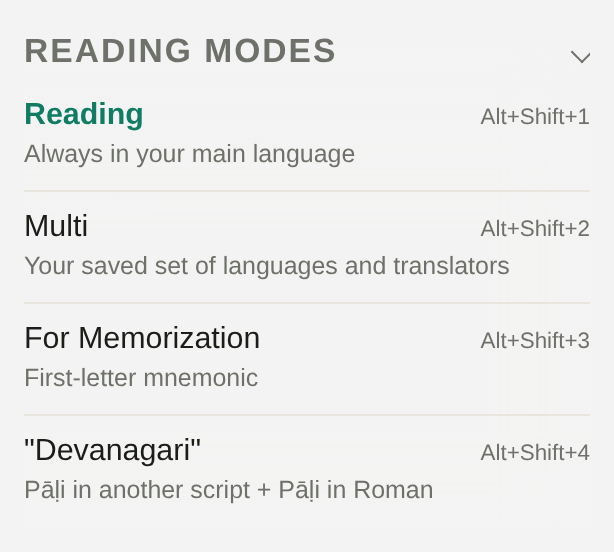
Four reading modes, listed under "Reading modes" in the burger menu (☰), each with its own Alt+Shift hotkey:
| Hotkey | Mode | What it shows |
|---|---|---|
| Alt+Shift+1 | Reading | Pāḷi + one translation, always in your main language |
| Alt+Shift+2 | Multi | Pāḷi + your saved set of languages and translators side by side |
| Alt+Shift+3 | For Memorization | First-letter mnemonic (the same trick as Memo, applied straight to the live sutta text) |
| Alt+Shift+4 | Devanagari | Pāḷi in another script + Pāḷi in Latin |
Alt+Shift+1…4 switch the mode and keep the language you're reading in. The language switches with Alt+1, the same on every page of the site; Alt+2 opens the table of contents and Alt+3 the dictionary.
A mode isn't tied to one fixed language — "Devanagari", for instance, shows Pali in whichever script you've selected (see below) alongside the Latin transliteration, not literally the Devanagari script only.
Translations come in 25 languages. For Thai, Mahachula (DN 1–34, MN 1–76) comes first, then Siam Rath.
Context menu
The reader's real gem is the per-line context menu. Hover (or tap) the start or end of any line — Pali or translation — and a tiny ✦ appears; clicking it opens a menu with 7 actions:

- Line — copy this line (Pali + translation) with a link to it.
- Paragraph — copy every line from here to the end of the paragraph (for verse/gāthā texts with no shared paragraph, this just copies the current line).
- Link — copy just a link to the line, no text.
- Voice — start voice playback from this line — see Voice / TTS.
- Bookmark — add the line to favorites — see the "Favorites" tab in the Quick Window.
- Memorize (sometimes labeled "Meditate" — both open the same thing, the label is picked at random) — opens Memo pre-filled with the text from this line onward (up to about 1,200 characters).
- Compare — opens this line in 4nt with every Pali edition side by side (MS, royal, Burmese, BJT).
The menu only opens from the invisible ✦. Clicking the line's text directly (not the ✦) selects it for the voice player and shows a ▶ Play button — a separate feature, covered in Voice / TTS.
Right-click / long-press on ✦ is the shortcut: it copies just the line link, no menu.
Pali script
Alt+L cycles through four common scripts: Latin (ISO) → Brahmi → Devanagari → Thai. The full list — around 160 scripts (Burmese, Khmer, Sinhala, and anything else Aksharamukha can convert to) — is in the dropdown on the Settings page.
Text size
The burger menu (☰) has − and + buttons for the text size, from 70 % to 250 %. Alt+− and Alt+= do the same, Alt+0 goes back to 100 %.
Dictionary
Clicking any Pali word (with the dictionary turned on) looks it up straight in Dict.Dhamma.Gift — either in a popup over the text or in a separate tab, depending on the dictionary mode you've chosen. See Dictionary for the dictionary itself, its hotkeys and display modes.
The dictionary mode (which window it opens) and a couple of other reading options live in the Quick Settings panel (the sliders icon next to the search box — also works inside the reader):
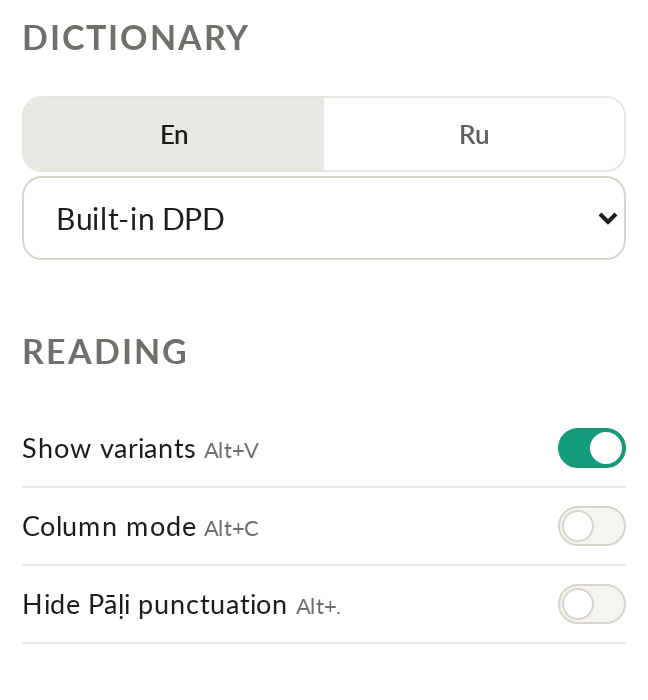
- Dictionary — the same list of modes described on the Dictionary page: built-in DPD, Dict.DG popup or new window (full or mini), DharmaMitra.org, sutta-search-only, or an external app (DPD Android, DictTango, Mdict, GoldenDict-NG) — separately for English and Russian DPD.
- Show variants (Alt+V) and Column mode (Alt+C) — the same buttons already in the toolbar above the text, duplicated here for convenience.
- Hide Pāḷi punctuation (Alt+G) — strips punctuation from the Pali text, handy for memorization.
Further down the same panel is a "Pāḷi diacritics" block — buttons for the special Pali characters (ā ī ū ṁ ñ ṅ ṭ ḍ ṇ ḷ); clicking one inserts it straight into the search box at the cursor, for when your keyboard doesn't have them.
Hotkeys
| Key | Action |
|---|---|
| Alt+Shift+1 … Alt+Shift+4 | Switch reading mode (see table above) |
| Alt+1 | Switch the language (English / Russian) |
| Alt+C | Toggle 1-column / 2-column layout |
| Alt+V | Show/hide Pali spelling variants |
| Alt+Q | Add/remove the current page from favorites |
| Alt+A | Toggle the dictionary on word click |
| Alt+N | Open the dictionary in a separate window |
| Alt+W | Table of contents of the text |
| Alt+2 | Open the TOC Navigator at this sutta's chapter |
| Alt+Z | Show/hide the Pali or the translation (the Pāḷi / En pill at the bottom right) |
| Alt+− / Alt+= / Alt+0 | Smaller / larger / default text size |
| Ctrl+← / Ctrl+→ | Previous / next sutta |
| Click a line | Select it for the voice player (see Voice / TTS) |
| Click ✦ at the start/end of a line | Open the context menu (see above) |
| Right-click / long-press ✦ | Copy just the link |
All hotkeys are listed on Keyboard shortcuts.
External editions and cross-references
The strip under the title links out to other editions and resources for the same passage:
- Voice — the built-in TTS player (Alt+R).
- 4nt (s.dhamma.gift) — side-by-side comparison of Pali editions.
- DPR — Digital Pali Reader, Burmese and Thai script.
- Tpt.lk — the Buddha Jayanti Tipiṭaka at tipitaka.lk.
- SC — SuttaCentral.net.
- TBW — TheBuddhasWords.net.
- Th.ru / Th.su — Theravada.ru / Theravada.su (Russian interface only).
- Final (Vinaya texts only) — jumps to the final edition of a rule, if it changed over the course of the history/discussion.
Further along the same row: icons to show/hide variants (Alt+V above), 1/2 columns, the dictionary, multi-select for the dictionary, the compass, and "Help" (links to this page). The contents icon (Alt+2) opens the table of contents at this sutta's own chapter. A bell appears in the toolbar when the text belongs to one of your Subscriptions (see the Quick Window).
Under the text
- Listen in MP3 — under some texts, a line with MP3 files of the whole text: the Pali and the translation, with the translator named.
- Under every text: links to Principles by the Suttas · Rationale · Glossary.
- A row of icons: copy link, export (saves the sutta as PDF or Markdown), Edit Translation (the Translation Editor), Memo, Create Lists, Compare, DharmaMitra and 4nt.
- The Pāḷi / En pill at the bottom right (Alt+Z) shows or hides either language.