Settings
The real, live Settings page — nothing to click or search for here:
Quick Settings — a lighter panel right next to search
Besides this full page, there's a second, lighter panel — Quick Settings, the sliders icon next to the search box (the ⚙︎ icon left of the magnifying glass), also reachable with Alt+S. It doesn't duplicate the settings page — it gives fast access to whatever's most relevant right where you're already working: on the home screen, in search results, or in the reader, without leaving for a separate page. Which groups show up depends on where you are — here are all of them, together:
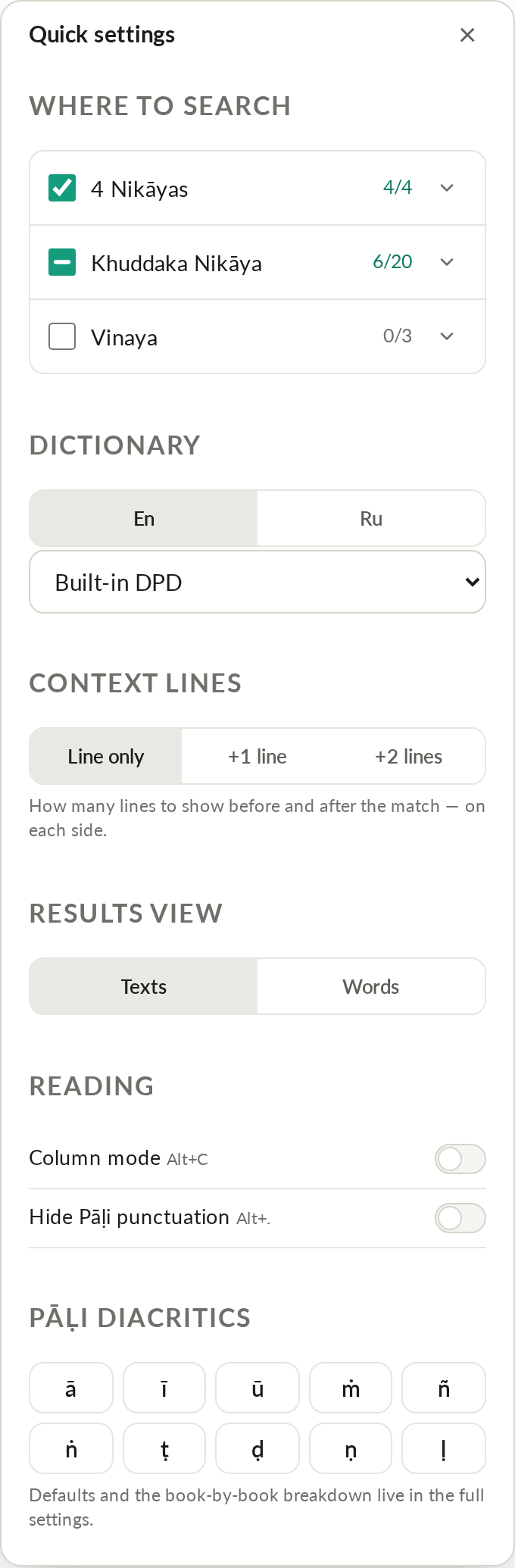
- Where to search — the same 4 Nikāyas / Khuddaka Nikāya / Vinaya toggles as "Default search scope" below on this page, but this one only changes the scope for the current query.
- Dictionary — which dictionary mode to use (see Dictionary).
- Quote context — results page only: how many lines to show before/after a match.
- Result view — Texts / Words (results page only).
- Reading — reading variants and column mode (in the reader), hide Pāḷi punctuation (anywhere there's Pali text).
- Devanagari script — only shows up while the reader is in "Devanagari" mode (see Reader).
- Several words — how words typed together are found: In a row, In a paragraph, or in the Whole text (see Search).
- Pāḷi diacritics — buttons for Pali special characters (ā ī ū ṁ ñ ṅ ṭ ḍ ṇ ḷ); clicking one inserts it straight into the search box.
Changes in Quick Settings save immediately — it's the same underlying settings as the full page below, just within reach without navigating anywhere.
General
- Interface language — menus and labels (doesn't affect text languages).
- Theme — light / dark / auto. Alt+T. (Stored in
localStorage.theme— the same key this Help site itself uses for its own light/dark toggle, so switching it here or on this page keeps both in sync live, same-origin.) - Cloud — sync bookmarks, notes and settings across devices, see Login.
- Button descriptions — a short line under each home-screen button's name; turned off, the description stays as a hover tooltip only.
Reading
-
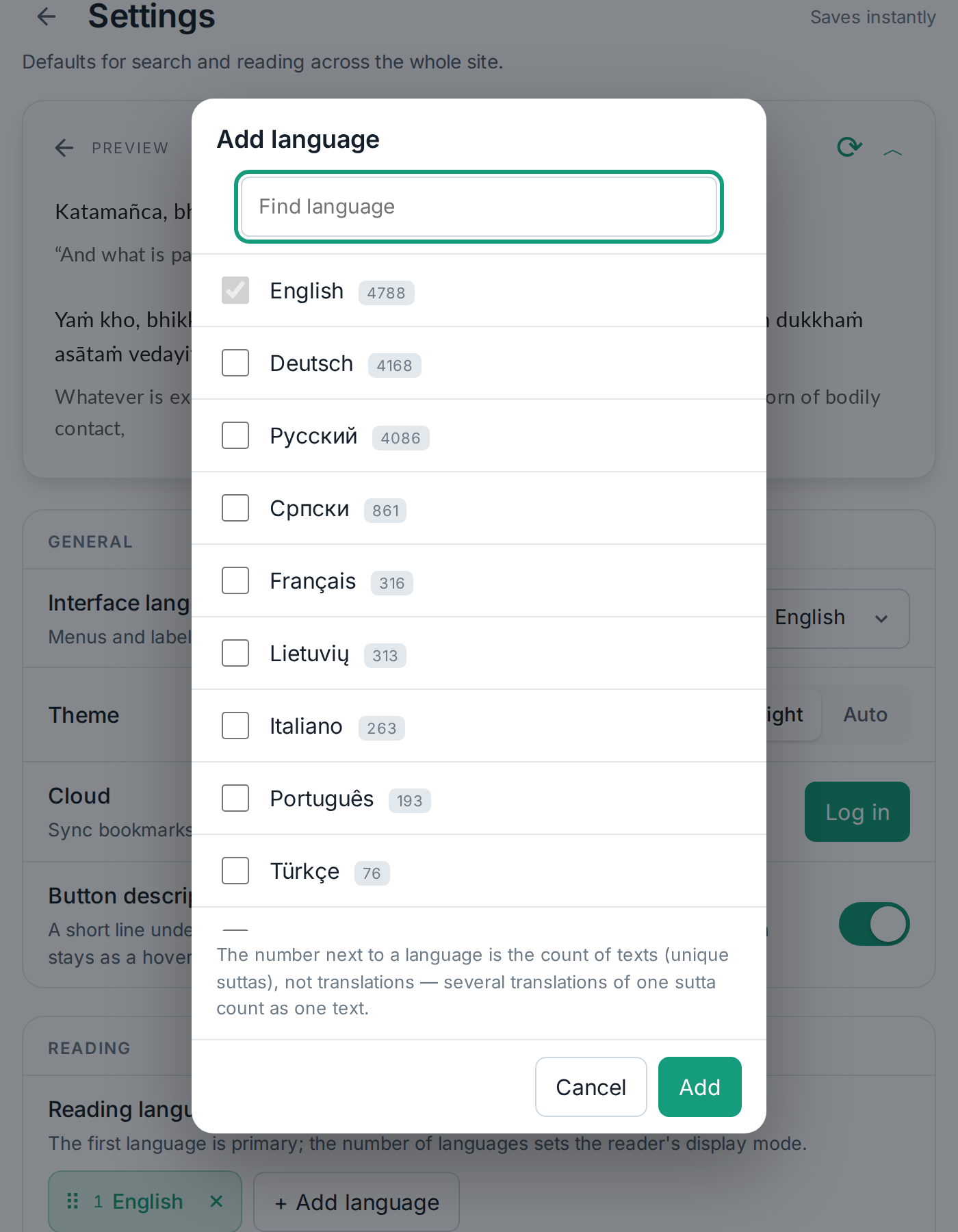
Reading languages — far more than just English and Russian: 25 languages with a text count for each. The first one picked is your primary language, and how many you pick determines the reader's display mode (see Reading modes); drag the chips to reorder them.
-
Pali script — Latin (ISO) and other scripts (see Pali script on the Reader page). The toggle Only in "Devanagari" mode decides whether the choice applies everywhere or only in the reader's "Devanagari" mode.
-
Text size — plus/minus, from 70 % to 250 %, the same Alt+= / Alt+- used everywhere on the site (Alt+0 goes back to 100 %).
-
Show Pali punctuation — turn off to strip commas/quotes and replace periods/
?/!with a vertical bar — closer to how manuscripts look. Alt+G
Search
- Default search scope — the same 4 Nikāyas / Khuddaka Nikāya / Vinaya checkbox list as in Quick Settings, but this is the default used for new queries (you can still change the scope for one particular search).
- Search languages — match your reading languages by default; a toggle lets you set a separate language list just for search.
- Context lines — how many lines to show before/after a match, as a number rather than buttons — the same setting as "Quote context" in Quick Settings.
- Multiple words, any order — visible in the UI, but honestly labeled "not yet implemented server-side" — the toggle is disabled.
Dictionary
- Dict.DG — the master on/off switch for the dictionary platform (see Dictionary).
- Mode — exactly which window/tab opens when you click a word.
- En / Ru — the language of the dictionary's meanings.
- Auto-search selected text — the same thing as the multi-select button in the reader (Alt+J): select several words and the dictionary looks them up on its own, no button click needed. Comes with a delay setting (3 or 5 seconds).
Pali root text
Results show the Mahāsaṅgīti (MS) text, with variant readings from all editions (BJT, VRI, Siam, PTS); search covers those readings too. Choosing BJT, VRI, SIAM or PTS as the text in the reader is coming soon.
Voice
- Google Cloud API key — optional: the Google voices work with a built-in trial key, your own key is for regular use (stored only in this browser) — details on Voice / TTS.
- Voice and playback speed — opens a separate panel (the same one the settings icon in the reader's own player opens, Alt+R) — see Voice / TTS.
Data
- Offline library — download the whole library to this device, so search and reading work without internet; "Delete" frees the space. It doesn't work in a private (incognito) window.
- Search history and favorites — "Clear" wipes them from this device (stored locally unless you're signed in to the cloud).
- All settings — "Reset" returns everything on this page to its defaults, without touching history, favorites, or your cloud login.
Related hotkeys
| Key | Action |
|---|---|
| Alt+S | Open/close Quick Settings (the sliders icon next to search) |
| Alt+Shift+S | Open/close this full Settings page |
| Ctrl+Shift+F (Cmd+Shift+F on Mac) | Find on page — not Alt+F, that's favorites; not plain Ctrl+F either, real browsers reserve that for their own find bar |
| Alt+Z | Show/hide the second language |
| Alt+T | Theme |
| Alt+G | Strip Pali punctuation |
| Alt+J | Multi-select for the dictionary |
| Alt+= / Alt+- | Text size |
| Ctrl+1 / Ctrl+2 / Ctrl+3 | Home / Table of contents / Dictionary |
| Alt+1 | Site language |
| Alt+8 | ml/th display mode |